Adding Lines to Production Orders
Once a Production Order has been "Issued", you can no longer add Line Items or edit existing Line Items.


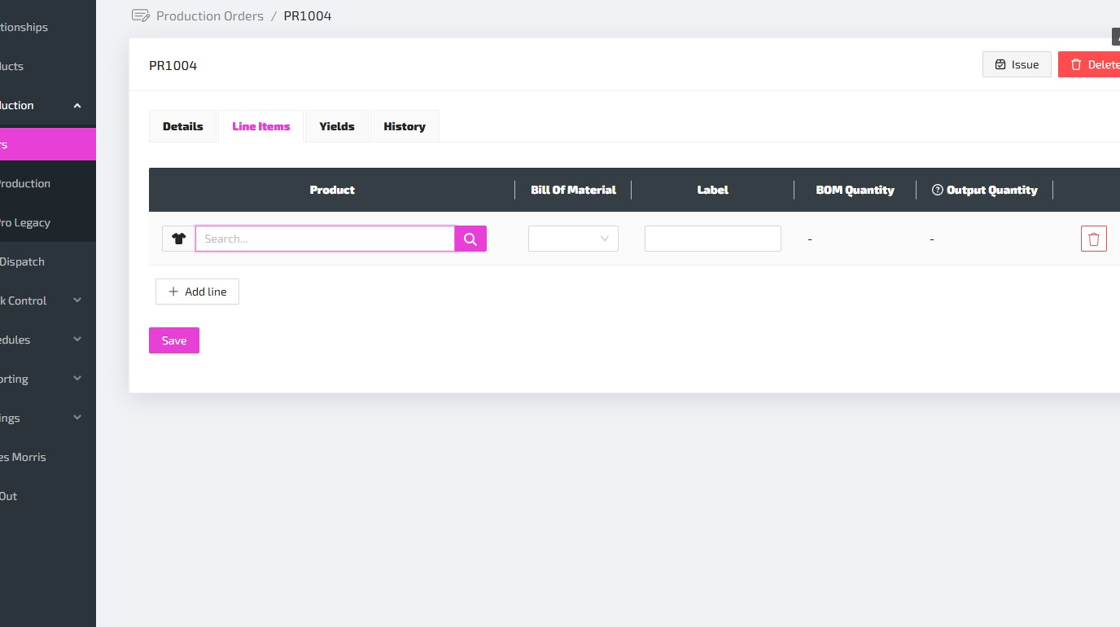
Tip: Here is a guide to help you understand each field, as you enter the Line Item details:
-
Product - This is the Product/Variant that you want to produce. Type in the SKU or part of the name of your Product and then click the search button (or use your “Enter” key) to show matching Products/Variants. You can then select the correct Product/Variant by clicking on it. NOTE: Only Products/Variants which have been marked as "Producible" will be available to select here. If you cannot find the correct Product/Variant, then you may first need to edit the Product/Variant to mark it as "Producible".
-
Bill Of Material - Bills of Material (BOMs) are setup against "Producible" Products/Variants to define which "Component" Products/Variants need to be consumed in order to produce the "Producible" Product/Variant. If you only have one Bill Of Material setup against your Product/Variant, then this BOM will be selected automatically. If you have multiple BOMs setup against your Product/Variant, then you will need to select which BOM should be used for this Production Order. NOTE: A BOM is required in order to produce a Product/Variant. If your Product/Variant does not have a BOM setup, then you must first do this via the "Bill of Material" tab of your Product.
-
Label - This is an optional field which you can use to give this Line Item a label which might be useful during production.
-
BOM Quantity - This field is read-only, and will be calculated automatically based on the Output Quantity.
-
Output Quantity - The quantity of this Product/Variant that you would like to produce.
