Adding Addresses to Relationships
1.Navigate to "Relationships".
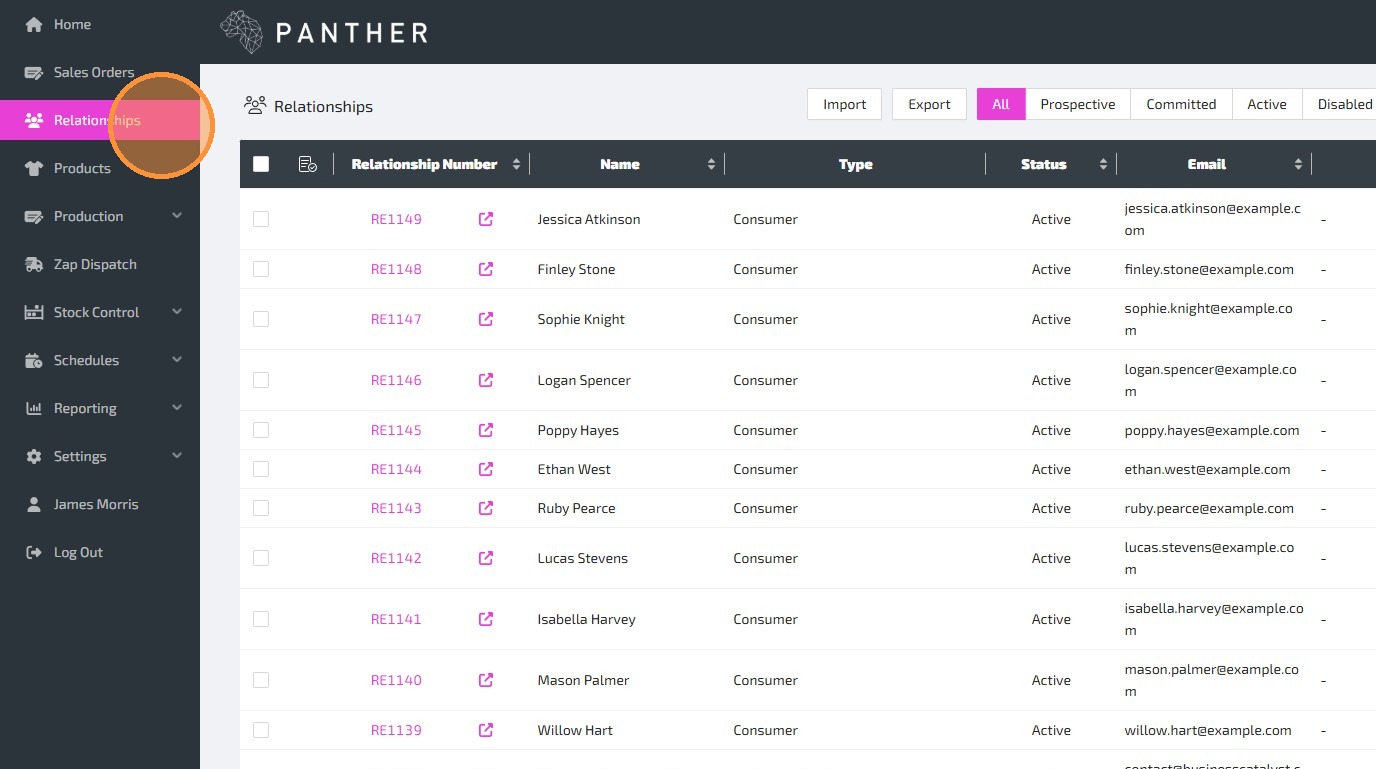
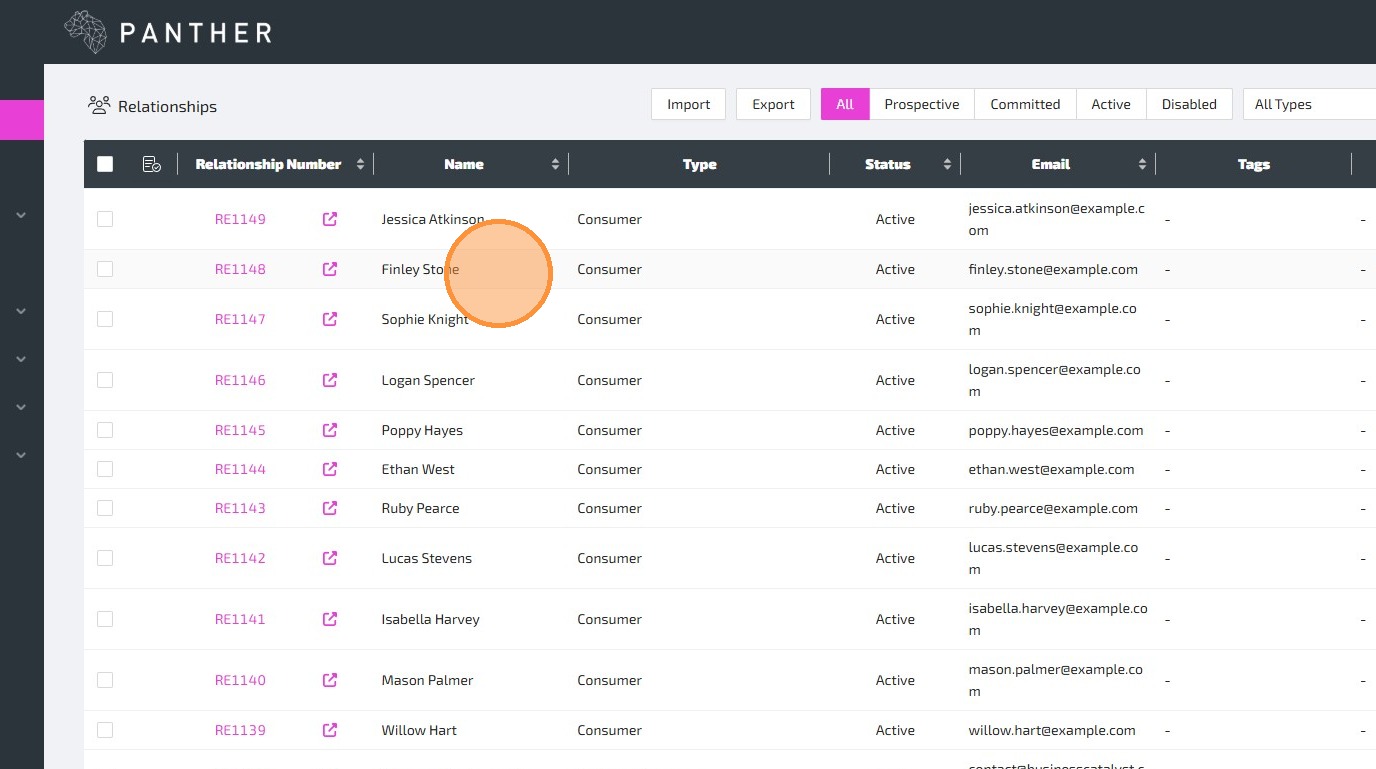
2.Find the Relationship that you want to add an Address to, and click on it to edit that Relationship.
3.Navigate to the "Addresses" tab. This tab will display existing Addresses, and allow you to add new Addresses.
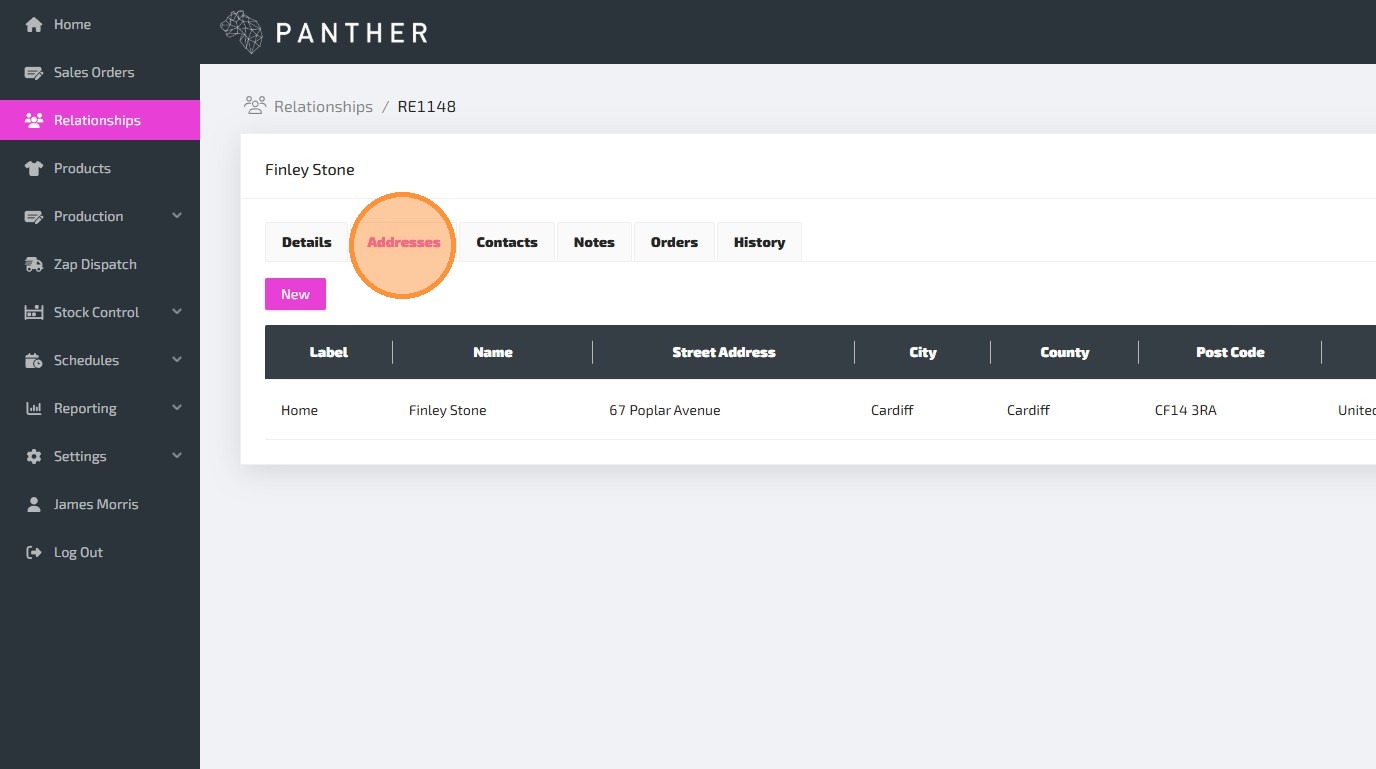
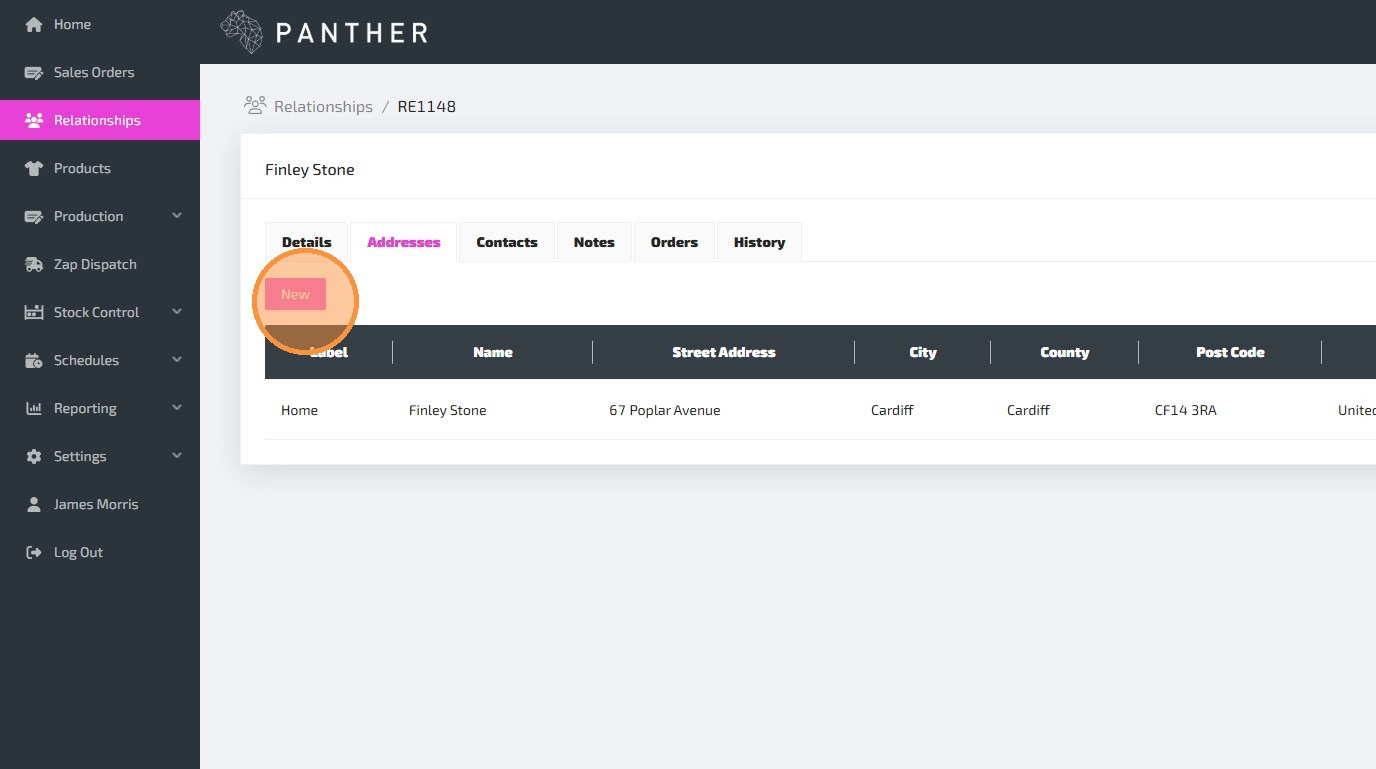
4.To add a new Address, click the "New" button.
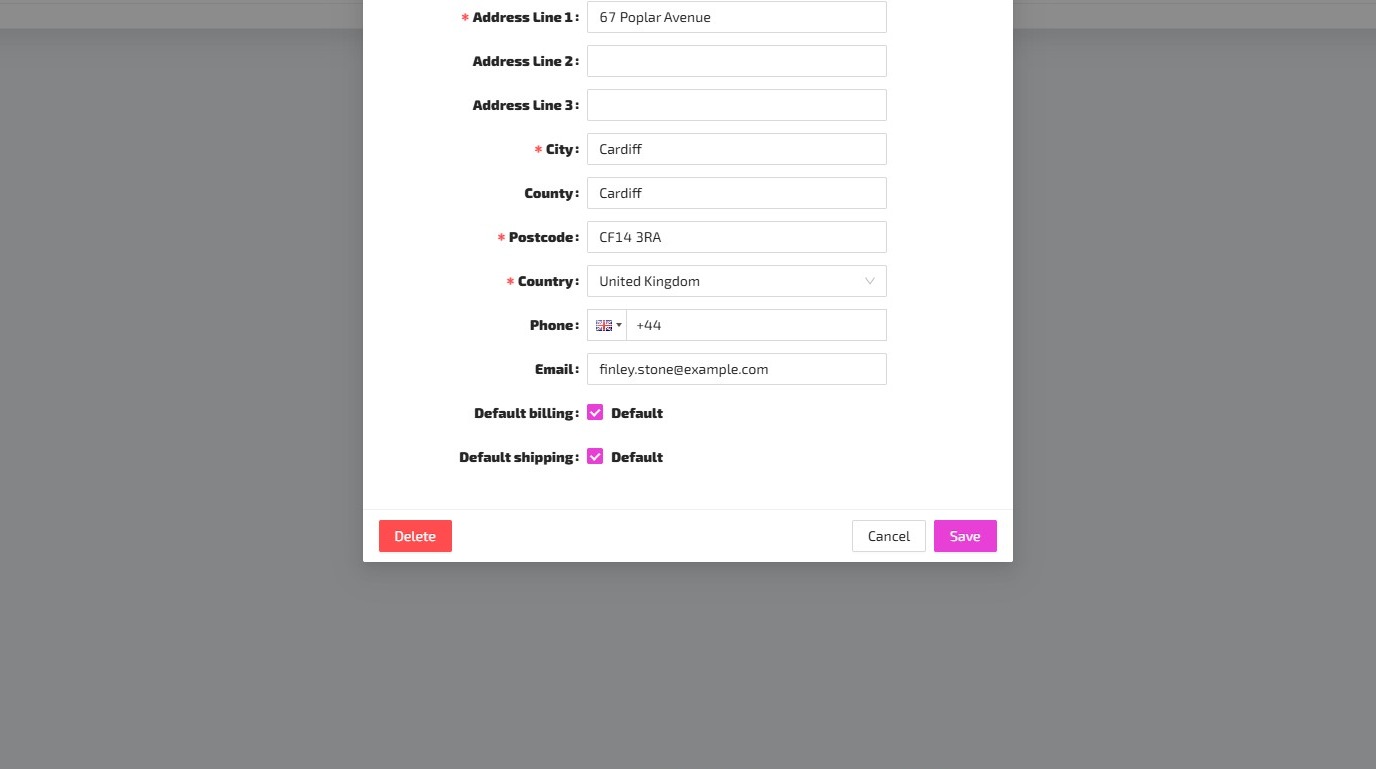
5.Complete the Address form. Some fields are required, while others are optional. Required fields are marked with a red asterisk.
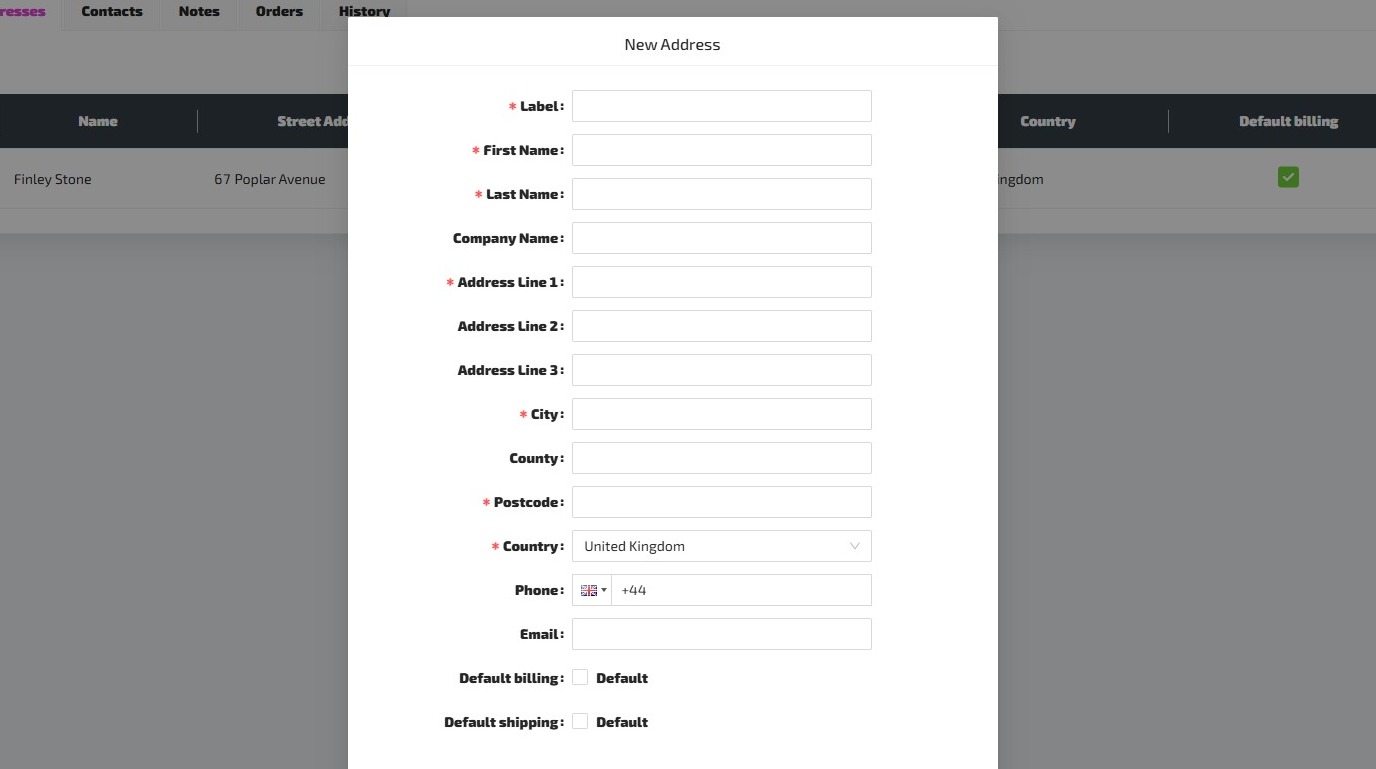
Here is a guide to help you understand each field, as you complete the Address form. Self explanatory fields have been left without a description.
- Label - Labels are used to quickly and easily identify and differentiate between different addresses. ("Home", "Work", "Parent's House", etc.)
- First Name
- Last Name
- Company Name
- Address Line 1
- Address Line 2
- Address Line 3
- City
- County
- Postcode
- Country
- Phone
- Default billing - If ticked, this address will be used by default as the Billing Address for new Sales Orders created for this Relationship.
- Default shipping - If ticked, this address will be used by default as the Shipping Address for new Sales Orders created for this Relationship.
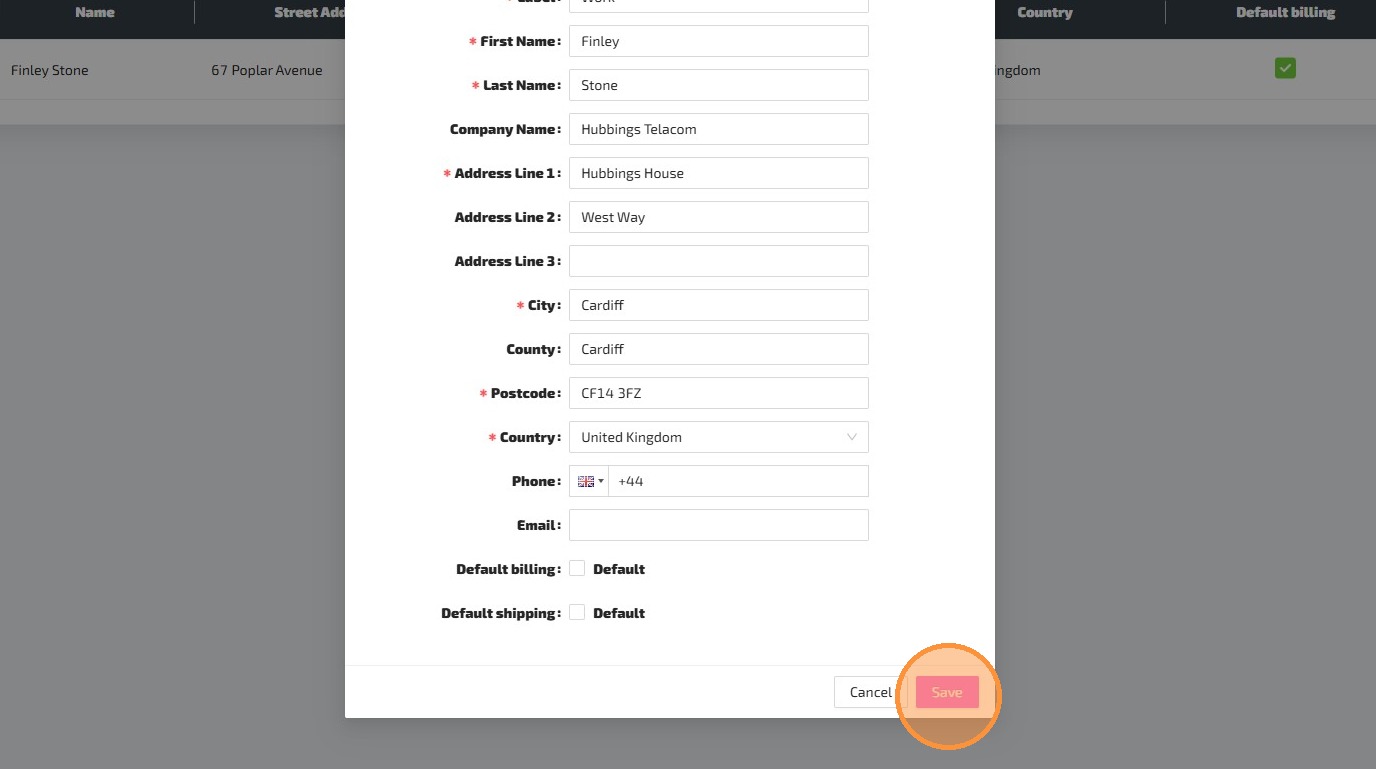
6.Once you have filled in the Address Form, click 'Save' to add the Address to the Relationship.
7.You can edit or delete an existing Address by clicking on the Address from the "Addresses" tab.
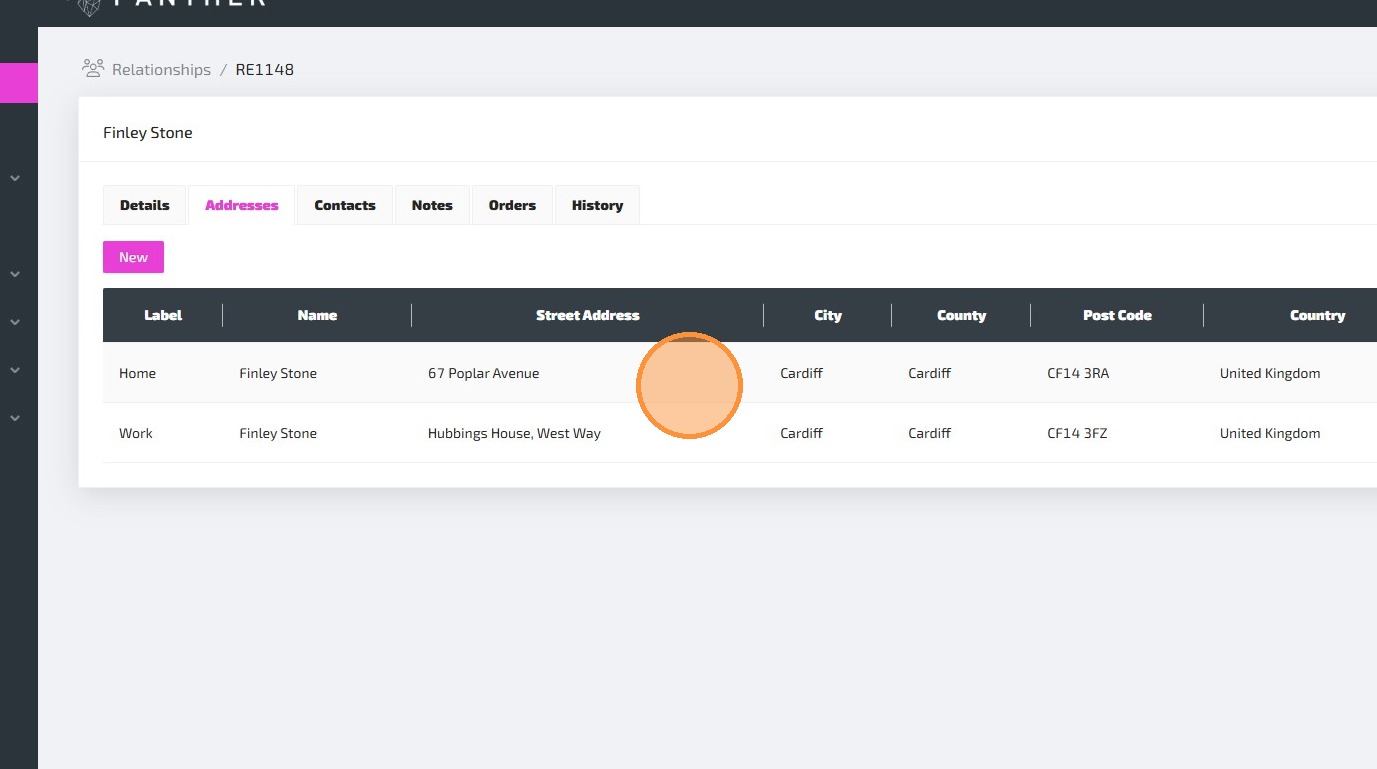
8.The "Delete" button will delete the Address, while the "Save" button will update the Address with any edits that you have made.